

Open Volume Changer & Booster whenever you need fast, studio-accurate results directly in your browser without uploading private files. Watch the Retina waveform scale live as you raise gain, spot potential clipping before it happens with coral peak indicators, and lock in −0.2 dBFS Peak, −14 LUFS Streaming, or −16 LUFS Podcast loudness in one click.
Open your audio or video locally
Click Choose Audio or Video in Volume Changer & Booster (or drag and drop MP3, WAV, FLAC, M4A, AAC, OGG, OPUS, WebM, MP4, or Mic) to render an interactive Retina waveform directly in local browser memory—or click Try Studio Demo to test immediately.
Press Spacebar to start playback and use the Waveform / Spectrogram / Live FFT view tabs or mouse-wheel zoom (up to 40×) to inspect exact transients and noise floors.
Studio tip: Keep True-Peak Anti-Clip switched on when boosting quiet phone voice memos by +12 dB or more—loud syllables stay clear instead of crackling.
Dial Original (0 dB) & audition live
Adjust Original (0 dB) and +6 dB (200% Louder) alongside +12 dB (400% Quiet Voice) in the studio control dock. Hold Shift while dragging any rotary dial for fine precision, or double-click any control to snap back to its calibrated default.
Press B on your keyboard (or click the FX Active (A/B) switch) while audio plays to crossfade click-free in 15 ms between your dry original and processed signal.
Rescue distant microphone takes
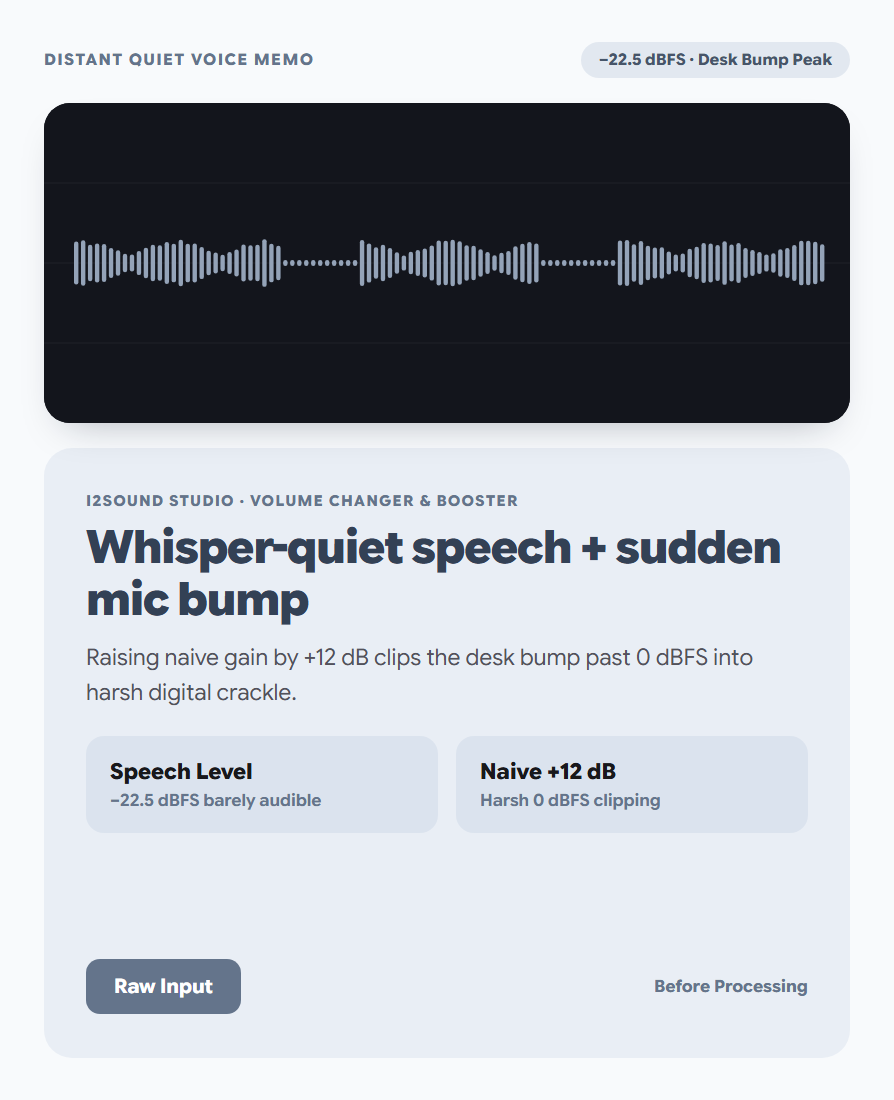
Amplify quiet classroom or meeting recordings by 200%–800% while catching sudden coughs or desk bumps safely below 0 dBFS.
One-click −14 & −16 LUFS targets
Match standard podcast (−16 LUFS) or video streaming (−14 LUFS) loudness automatically without complex compressor setups.
Re-center uneven L/R channels
Use the Stereo Balance dial to compensate for off-center dual-mic interviews or uneven stereo camera recordings.
Verify levels and export cleanly
Confirm headroom on the stereo output meter so peaks remain safely below 0.0 dBFS. Select your target format—such as MP3 · 320 kbps, WAV · 24-bit Studio, or FLAC · 16-bit Lossless—and click Export Audio.
Need multi-step mastering or multi-track stem layering afterward? Click Continue in (or Pro Studio in the upper module bar) to pass your processed audio straight to the next studio tool without re-uploading.
Verified Studio Recipe — Volume Changer & Booster
Input Support : MP3, WAV, FLAC, M4A, AAC, OGG, OPUS, WebM, MP4, or Mic
Key Controls  : Original (0 dB)  |  +6 dB (200% Louder)  |  +12 dB (400% Quiet Voice)  |  Peak Normalize (−0.2 dBFS)  |  Streaming Loudness (−14 LUFS)
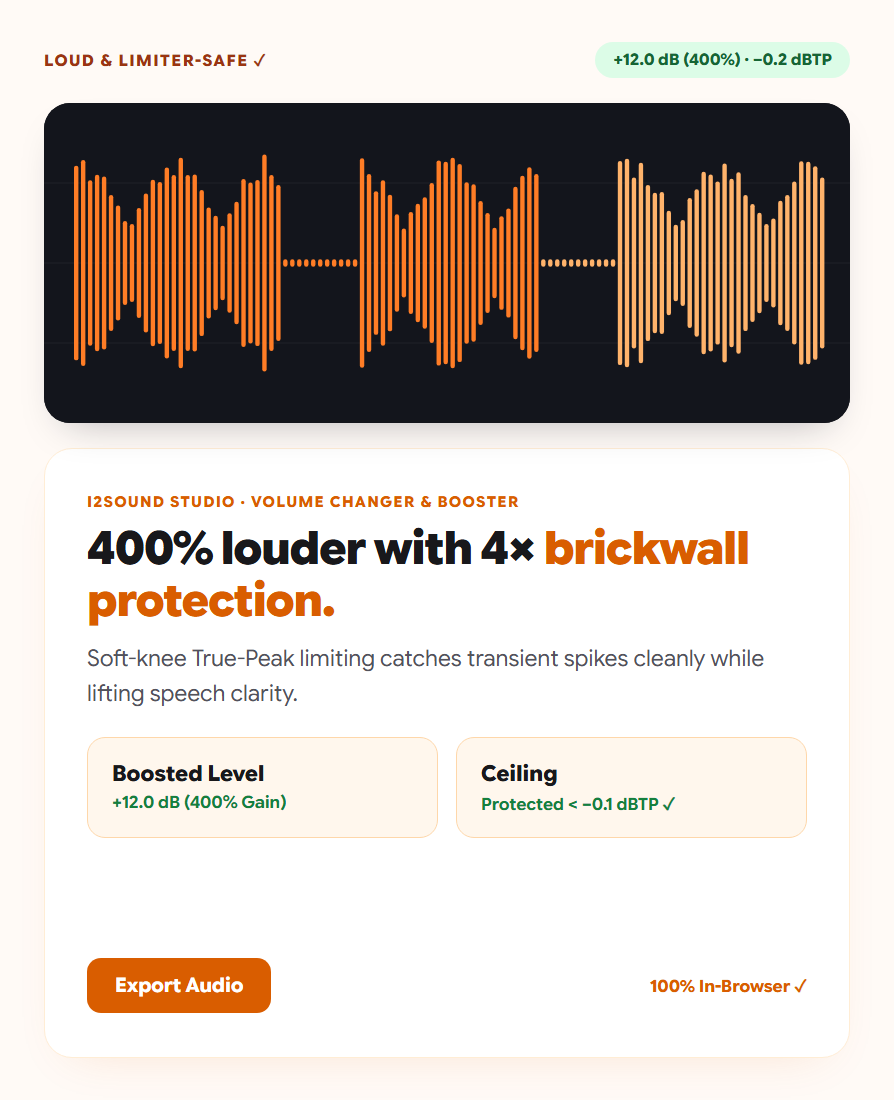
Before -> Now : −22.5 dBFS · Desk Bump Peak  -->  +12.0 dB (400%) · −0.2 dBTP
Output Export : 320/192/128 kbps MP3, 16/24/32-bit WAV, Lossless FLAC (100% Client-Side Browser DSP)Common questions
How can Volume Booster make audio 400% louder without harsh distortion?
Without protection, pushing peaks past 0 dBFS slices off waveform tops (digital clipping). i2Sound passes boosted audio through a 4× oversampled soft-knee brickwall limiter that smoothly rounds transient peaks while lifting average loudness.
What is the difference between Peak Normalize and −14 / −16 LUFS?
Peak Normalize raises gain until the single loudest instant hits −0.2 dBFS. LUFS presets measure average perceived loudness across the whole file to match Spotify/YouTube (−14 LUFS) or Apple/Spotify Podcasts (−16 LUFS).
Can I fix a stereo recording that is louder in one headphone ear?
Yes. Use the Stereo Balance dial (−100% Left to +100% Right) to re-center uneven dual-microphone or camera recordings before exporting.
Try Volume Changer & Booster in your browser
Amplify recordings up to +24 dB or auto-level to −14 / −16 LUFS with 4× True-Peak protection.