
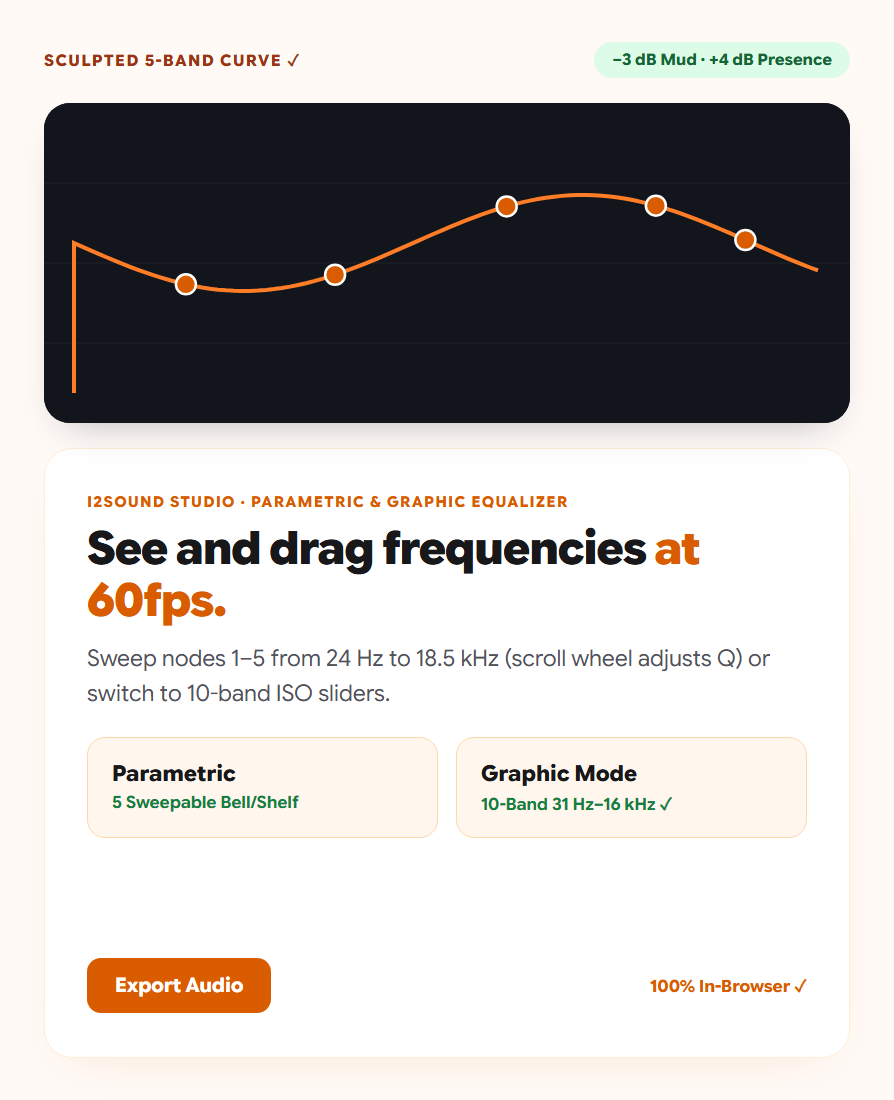

Open Parametric & Graphic Equalizer whenever you need fast, studio-accurate results directly in your browser without uploading private files. Switch effortlessly between an interactive 5-band Parametric Equalizer—where you drag frequency and gain nodes right on the live spectrum—and a classic 10-band ISO Graphic Equalizer.
Open your audio or video locally
Click Choose Audio or Video in Parametric & Graphic Equalizer (or drag and drop MP3, WAV, FLAC, M4A, AAC, OGG, OPUS, WebM, MP4, or Mic) to render an interactive Retina waveform directly in local browser memory—or click Try Studio Demo to test immediately.
Press Spacebar to start playback and use the Waveform / Spectrogram / Live FFT view tabs or mouse-wheel zoom (up to 40×) to inspect exact transients and noise floors.
Studio tip: Hover over any numbered node (1–5) on the Parametric EQ curve and scroll your mouse wheel to narrow or widen its Q bandwidth—or double-click any node to snap it back to 0 dB.
Dial Flat Bypass & audition live
Adjust Flat Bypass and Deep Bass Punch alongside Podcast & Vocal Clarity in the studio control dock. Hold Shift while dragging any rotary dial for fine precision, or double-click any control to snap back to its calibrated default.
Press B on your keyboard (or click the FX Active (A/B) switch) while audio plays to crossfade click-free in 15 ms between your dry original and processed signal.
Remove mud and boost vocal presence
Attenuate low-end room rumble below 90 Hz, dip boxy 400 Hz mud, and lift 3.5 kHz articulation so speech cuts cleanly through phone speakers.
Surgical parametric Q control
Target resonant frequencies between 24 Hz and 18.5 kHz with adjustable Q bandwidth while watching live harmonic energy underneath.
Familiar 10-band ISO faders
Prefer classic hardware sliders? Use the 31 Hz to 16 kHz octave faders or start from one-click Bass Punch and Hi-Fi V-Shape presets.
Verify levels and export cleanly
Confirm headroom on the stereo output meter so peaks remain safely below 0.0 dBFS. Select your target format—such as MP3 · 320 kbps, WAV · 24-bit Studio, or FLAC · 16-bit Lossless—and click Export Audio.
Need multi-step mastering or multi-track stem layering afterward? Click Continue in (or Pro Studio in the upper module bar) to pass your processed audio straight to the next studio tool without re-uploading.
Verified Studio Recipe — Parametric & Graphic Equalizer
Input Support : MP3, WAV, FLAC, M4A, AAC, OGG, OPUS, WebM, MP4, or Mic
Key Controls  : Flat Bypass  |  Deep Bass Punch  |  Podcast & Vocal Clarity  |  Hi-Fi V-Shape  |  Warm Vintage Radio
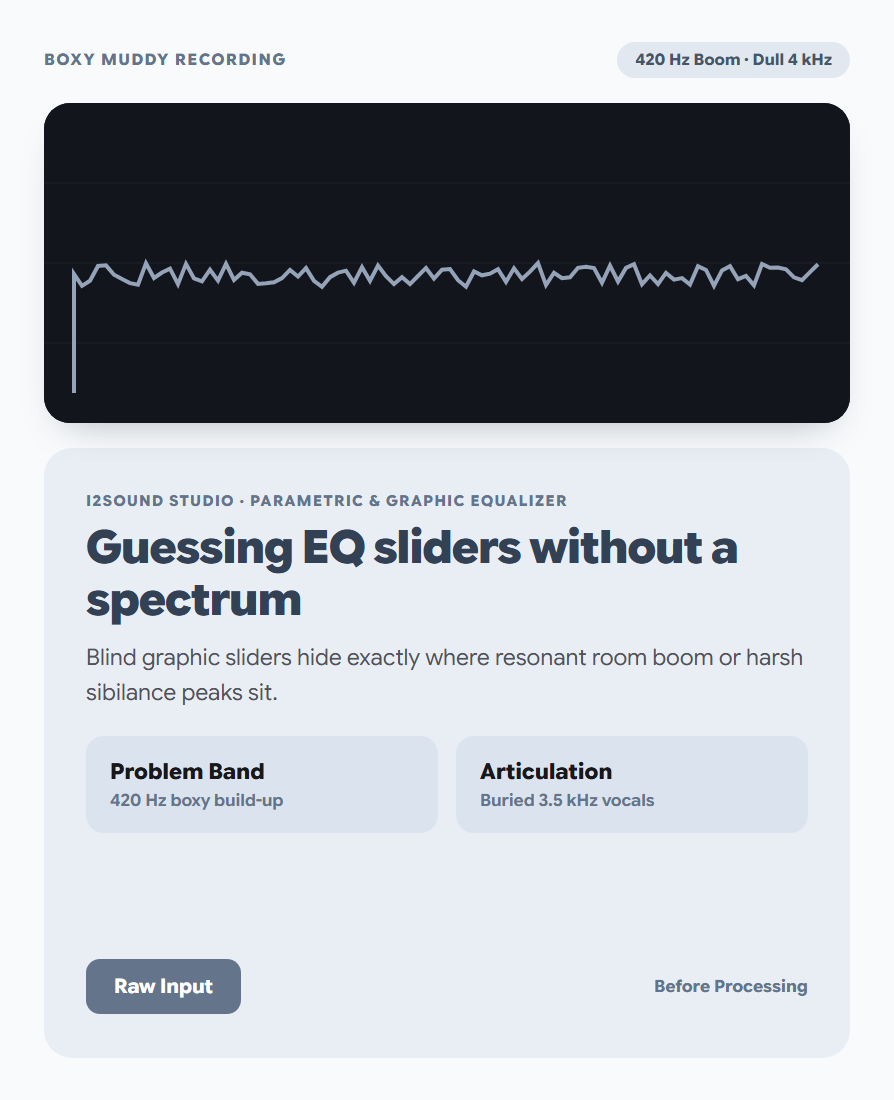
Before -> Now : 420 Hz Boom · Dull 4 kHz  -->  −3 dB Mud · +4 dB Presence
Output Export : 320/192/128 kbps MP3, 16/24/32-bit WAV, Lossless FLAC (100% Client-Side Browser DSP)Common questions
What is the difference between Parametric EQ and 10-Band Graphic EQ?
A 10-Band Graphic EQ uses fixed octave center frequencies (31 Hz to 16 kHz) for quick tonal shaping, while a Parametric EQ lets you sweep exact center frequencies and adjust Q bandwidth for surgical control.
How do I prevent distortion when boosting bass or treble?
Keep True-Peak Anti-Clip enabled (on by default) and pull down the Preamp Trim knob by a few decibels whenever applying large EQ boosts.
Can I switch between the FFT curve and the Waveform or Spectrogram?
Yes. Use the Waveform / Spectrogram / Live FFT toggle in the studio topbar at any time while your EQ filters remain active.
Try Parametric & Graphic Equalizer in your browser
Drag 5 parametric frequency/Q nodes on a real-time spectrum or dial 10 octave ISO faders.