
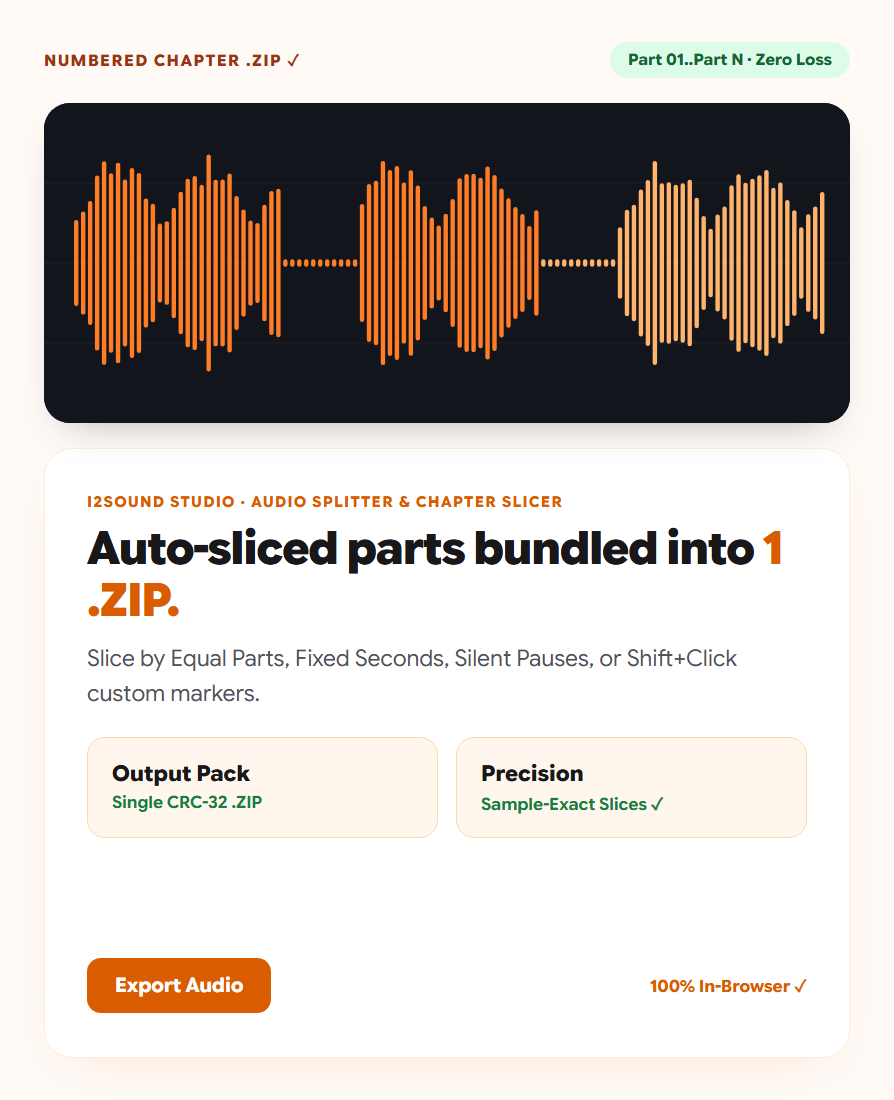

Open Audio Splitter & Chapter Slicer whenever you need fast, studio-accurate results directly in your browser without uploading private files. Turn multi-hour podcasts, albums, or language lessons into numbered audio files automatically—previewing every Part marker right on the Retina waveform before downloading individual clips or a single .ZIP archive.
Open your audio or video locally
Click Choose Audio or Video in Audio Splitter & Chapter Slicer (or drag and drop MP3, WAV, FLAC, M4A, AAC, OGG, OPUS, or Video Soundtrack) to render an interactive Retina waveform directly in local browser memory—or click Try Studio Demo to test immediately.
Press Spacebar to start playback and use the Waveform / Spectrogram / Live FFT view tabs or mouse-wheel zoom (up to 40×) to inspect exact transients and noise floors.
Studio tip: Switch Split Method to Custom and hold Shift while clicking anywhere on the waveform to place exact chapter markers by ear and eye.
Dial Split into 4 Equal Parts & audition live
Adjust Split into 4 Equal Parts and Split in Half (2 Parts) alongside Auto-Split on Pauses / Silence in the studio control dock. Hold Shift while dragging any rotary dial for fine precision, or double-click any control to snap back to its calibrated default.
Press B on your keyboard (or click the FX Active (A/B) switch) while audio plays to crossfade click-free in 15 ms between your dry original and processed signal.
Auto-split vocabulary on pauses
Use On Silence mode to slice flashcard words or spoken sentences automatically at every silent gap.
30s & 60s story segments
Divide long commentary into fixed 30-second or 60-second sequential clips packed neatly in one .ZIP.
Custom track-marker chapters
Drop markers between songs in a continuous live recording and export numbered 320 kbps MP3 or lossless FLAC tracks.
Verify levels and export cleanly
Confirm headroom on the stereo output meter so peaks remain safely below 0.0 dBFS. Select your target format—such as MP3 · 320 kbps, WAV · 24-bit Studio, or FLAC · 16-bit Lossless—and click Export Audio.
Need multi-step mastering or multi-track stem layering afterward? Click Continue in (or Pro Studio in the upper module bar) to pass your processed audio straight to the next studio tool without re-uploading.
Verified Studio Recipe — Audio Splitter & Chapter Slicer
Input Support : MP3, WAV, FLAC, M4A, AAC, OGG, OPUS, or Video Soundtrack
Key Controls  : Split into 4 Equal Parts  |  Split in Half (2 Parts)  |  Auto-Split on Pauses / Silence  |  Every 30s (Story / Reel Clips)  |  Custom Markers (Shift + Click Wave)
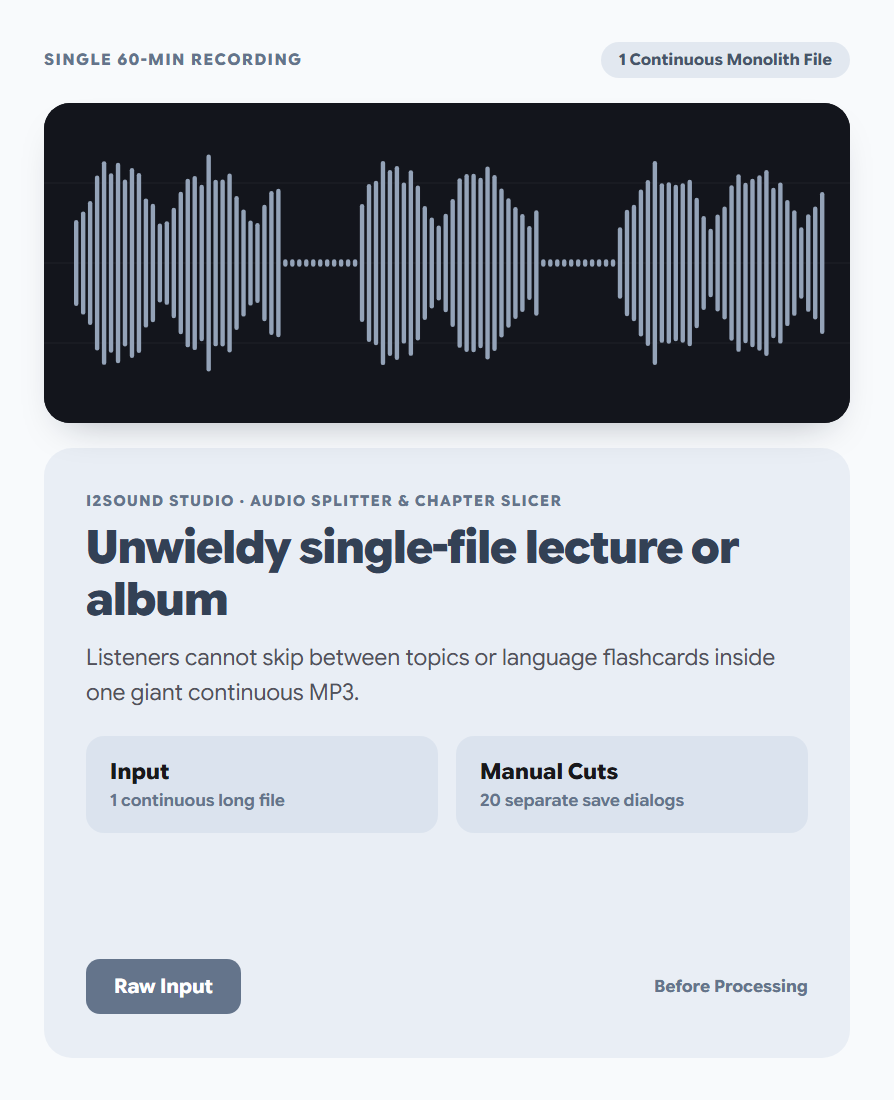
Before -> Now : 1 Continuous Monolith File  -->  Part 01..Part N · Zero Loss
Output Export : Individual Audio Slices or Single Multi-Part .ZIP Archive (100% Client-Side Browser DSP)Common questions
How are multiple split parts downloaded?
You can download any individual slice using its Download Part button, or click Export Audio to download all numbered parts bundled inside a single .ZIP file generated locally in your browser.
How do I place custom split points at exact timestamps?
Select Custom under Split Method, then hold Shift and click anywhere along the Retina waveform to drop numbered Part markers.
Does splitting audio reduce sound quality?
When exporting to 16/24-bit WAV or lossless FLAC, every sliced segment preserves 100% bit-exact uncompressed sample fidelity.
Try Audio Splitter & Chapter Slicer in your browser
Slice podcasts, audiobooks, and lessons into numbered files packed in a single .ZIP.