

Open Audio Cutter & Trimmer whenever you need fast, studio-accurate results directly in your browser without uploading private files. Zoom from a full-song capsule overview down to individual samples, drag magnetic start and end brackets, keep a highlight clip or splice an unwanted cough out of the middle, and export with zero upload delay.
Open your audio or video file locally
Click Choose Audio or Video (or drop an MP3, WAV, FLAC, M4A, OGG, or MP4 file onto the studio). Your browser renders a Dual-LOD Retina capsule waveform immediately without uploading your file.
Use mouse-wheel zoom (up to 40×) and the overview minimap to inspect millisecond transients and breath points.
Studio tip: Need to EQ or add reverb after cutting? Click Continue in at the bottom right of the studio—your trimmed audio opens immediately in the next tool without re-uploading.
Position trim handles or splice the middle
Drag the left and right orange trim brackets (or type exact timestamps into Start Time and End Time). Keep Keep Inside selected to isolate a clip, or switch Trim Mode to Remove Inside to delete a cough or stumble from the middle with an automatic 12 ms equal-power splice.
Want smooth radio transitions? Drag the top amber fade dots or turn the Fade In and Fade Out knobs to sculpt cubic Hermite S-curves.
Splice out mistakes cleanly
Switch Trim Mode to Remove Inside to delete stumbles or ad reads from the middle of an interview with an automatic 12 ms equal-power anti-click crossfade.
Zero-re-encode MP3 cutting
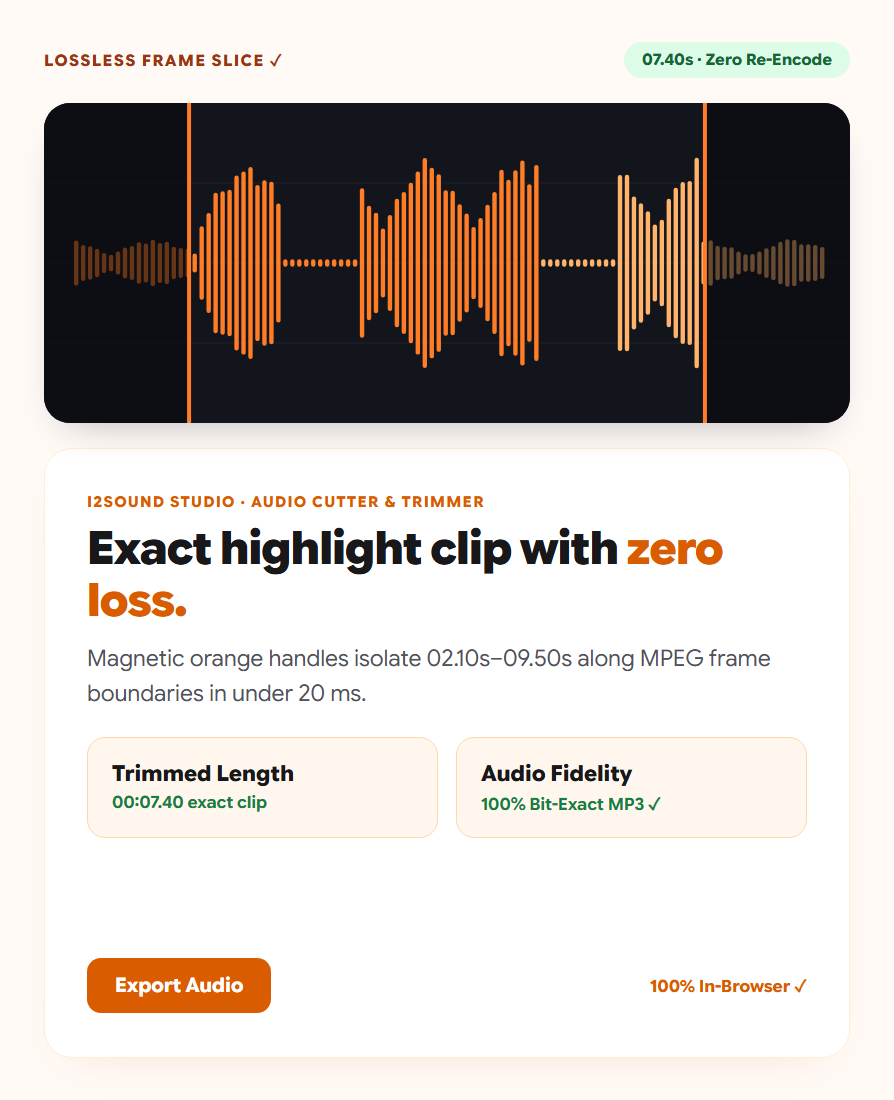
When cutting an MP3 without fades or gain changes, i2Sound slices raw MPEG Layer III frames directly—preserving 100% original audio fidelity in milliseconds.
30-second hooks with S-curve fades
Apply the 30s Ringtone preset or drag the top corner amber dots to sculpt silky Hermite S-curve fade-ins and fade-outs.
Export bit-exact MP3 or lossless WAV
When trimming an MP3 in Keep Inside mode with fades and gain at 0, the green Zero-re-encode lossless MP3 frame slice ready badge lights up—exporting raw MPEG Layer III frames in milliseconds with zero recompression.
If you added S-curve fades or gain boosts, choose MP3 · 320 kbps, WAV · 24-bit Studio, or FLAC and click Export Audio.
Lossless MP3 Frame Slicer vs. Fade Render
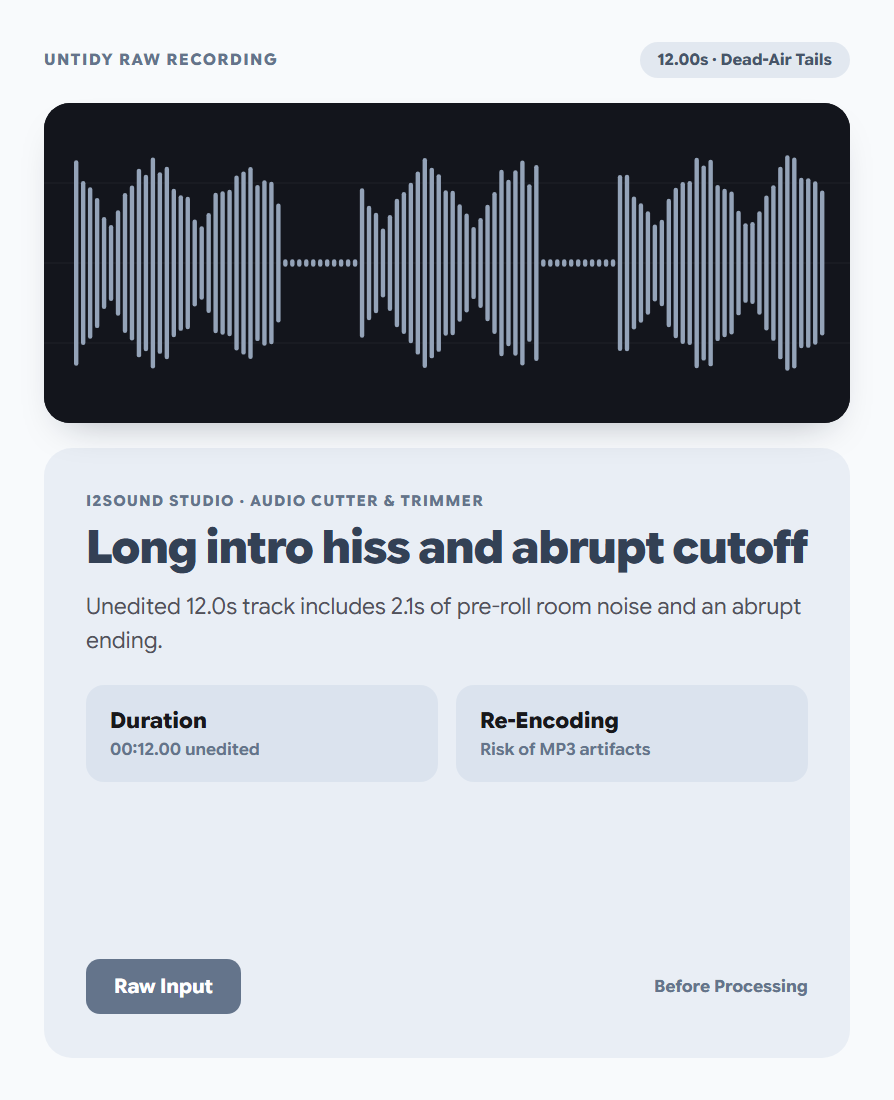
Input File   : interview-raw.mp3 (320 kbps CBR, 44.1 kHz Stereo)
Keep Region  : 00:02.10 -> 00:09.50 (Delta 07.40s)
Zero-Encode  : Active when Fade In = 0s, Fade Out = 0s, Gain = 0 dB
DSP Render : Hermite S-Curve u^2*(3 - 2u) when fades or Remove-Inside are usedCommon questions
When does Audio Cutter use lossless zero-re-encode slicing?
Whenever you load an MP3 file, stay in Keep Inside mode with Fade In, Fade Out, and Output Gain at 0, and export as MP3, i2Sound slices exact MPEG Layer III frames directly in memory without decoding and re-compressing.
How do I cut out a section in the middle of a recording?
Select Remove Inside under Trim Mode, drag the red-amber handles around the section you want gone, press Spacebar to preview the seamless splice live, and click Export Audio.
Can I extract and trim audio directly from an MP4 or MOV video?
Yes. Drop any MP4, WebM, or MOV video straight onto the studio—your browser decodes the soundtrack locally so you can trim and export it as MP3 or lossless WAV.
Try Audio Cutter & Trimmer in your browser
Cut intros, splice out middle mistakes, or add silky S-curve fades.