

Open Audio Joiner & Merger whenever you need fast, studio-accurate results directly in your browser without uploading private files. Drop two or twenty audio clips in any format, reorder them with one-click arrows, blend transitions with equal-power DJ crossfades or clean chapter pauses, and auto-balance volume across every clip.
Open your audio or video locally
Click Choose Audio or Video in Audio Joiner & Merger (or drag and drop 2+ MP3, WAV, FLAC, M4A, AAC, OGG, OPUS, or Video Files) to render an interactive Retina waveform directly in local browser memory—or click Try Studio Demo to test immediately.
Press Spacebar to start playback and use the Waveform / Spectrogram / Live FFT view tabs or mouse-wheel zoom (up to 40×) to inspect exact transients and noise floors.
Studio tip: Mixing clips recorded on different microphones? Keep Auto-Match Clip Volume enabled so quiet voice intros and loud music beds play at one consistent level.
Dial Smooth Crossfade (600 ms) & audition live
Adjust Smooth Crossfade (600 ms) and Zero-Gap Butt Splice alongside Podcast Chapters (400 ms Gap) in the studio control dock. Hold Shift while dragging any rotary dial for fine precision, or double-click any control to snap back to its calibrated default.
Press B on your keyboard (or click the FX Active (A/B) switch) while audio plays to crossfade click-free in 15 ms between your dry original and processed signal.
Stitch intro, interview & outro
Combine theme music, host narration, and sponsor reads with automatic loudness matching and clean chapter spacing.
Seamless DJ crossfade medleys
Overlap song endings and intros by 0.6–2.0 seconds using cosine/sine equal-power crossfades with zero volume dips.
Join multi-part phone recordings
Merge scattered M4A, WAV, and MP3 takes into a single shareable file privately in your browser.
Verify levels and export cleanly
Confirm headroom on the stereo output meter so peaks remain safely below 0.0 dBFS. Select your target format—such as MP3 · 320 kbps, WAV · 24-bit Studio, or FLAC · 16-bit Lossless—and click Export Audio.
Need multi-step mastering or multi-track stem layering afterward? Click Continue in (or Pro Studio in the upper module bar) to pass your processed audio straight to the next studio tool without re-uploading.
Verified Studio Recipe — Audio Joiner & Merger
Input Support : 2+ MP3, WAV, FLAC, M4A, AAC, OGG, OPUS, or Video Files
Key Controls  : Smooth Crossfade (600 ms)  |  Zero-Gap Butt Splice  |  Podcast Chapters (400 ms Gap)  |  2.0s Ambient Blend  |  Crossfade Overlap
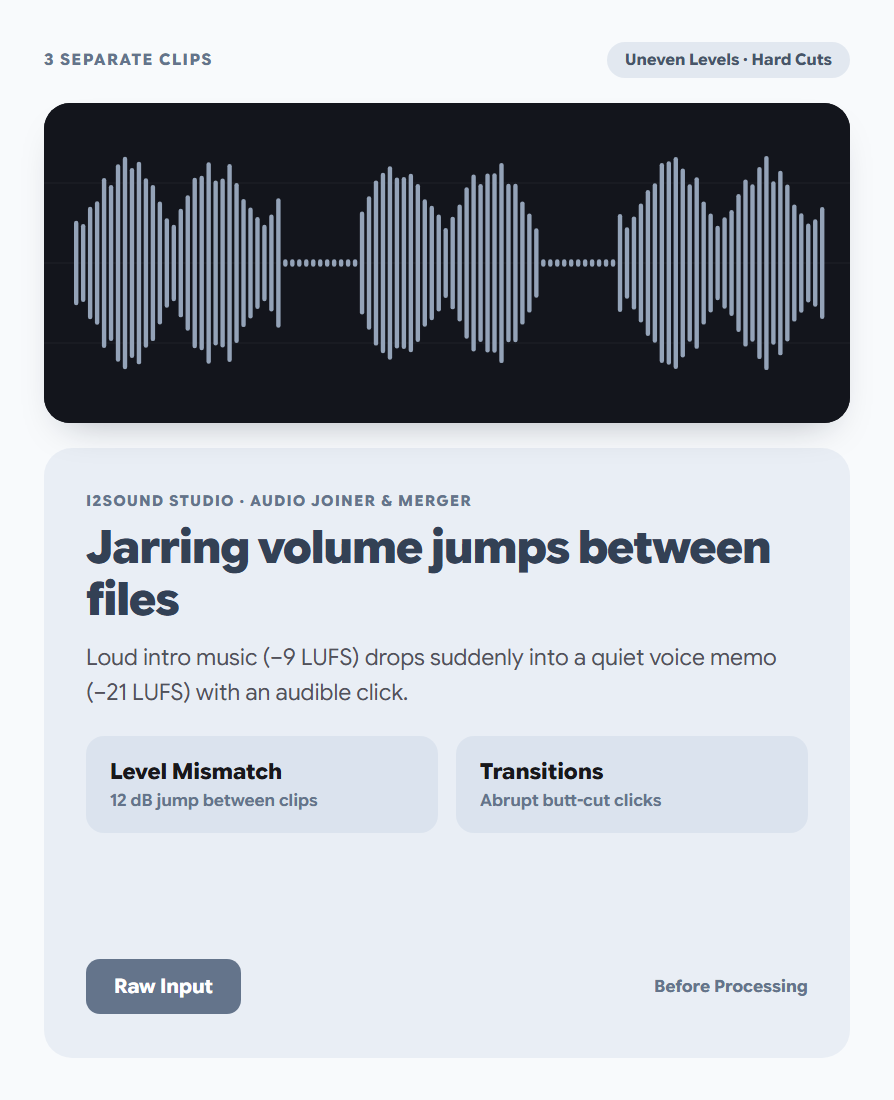
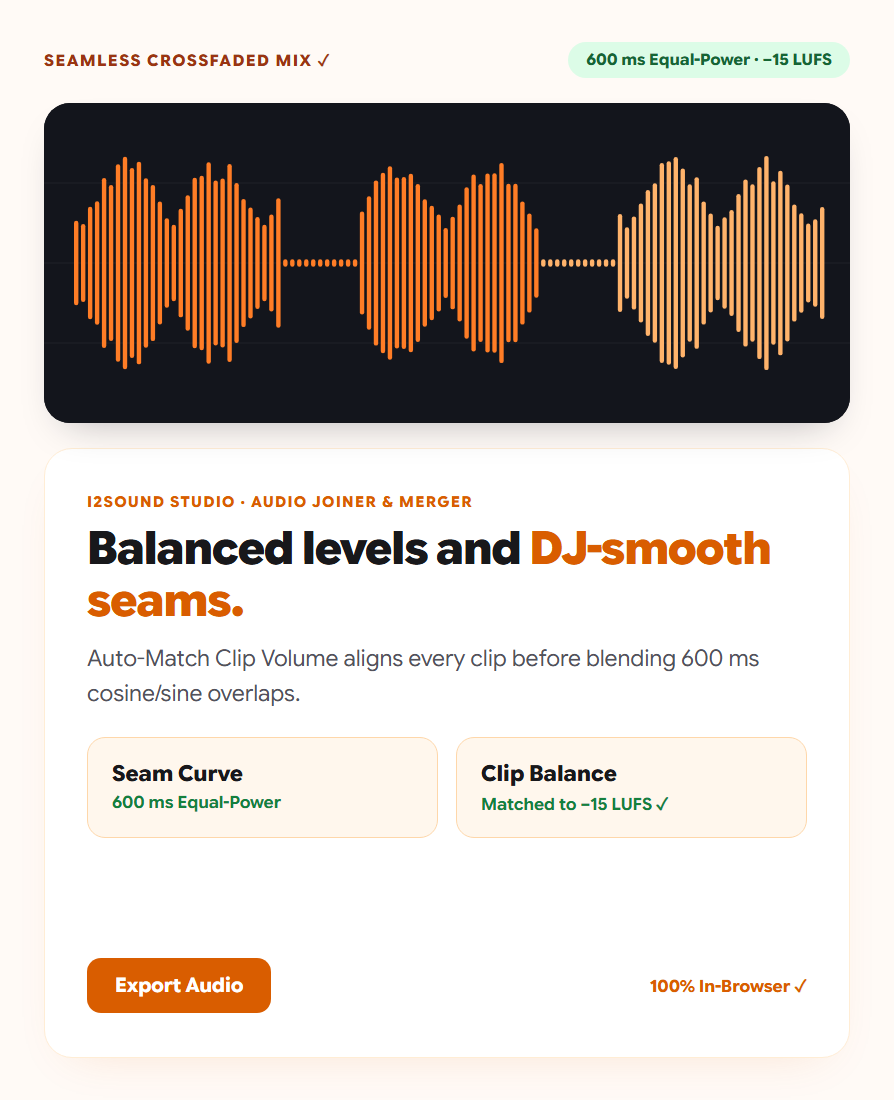
Before -> Now : Uneven Levels · Hard Cuts  -->  600 ms Equal-Power · −15 LUFS
Output Export : Single Stitched MP3 (320/192/128k), 16/24/32-bit WAV, or FLAC (100% Client-Side Browser DSP)Common questions
Can I merge files that have different formats or sample rates (e.g., MP3 + WAV + M4A)?
Yes. i2Sound automatically resamples and channel-matches every clip to a unified stereo studio timeline before crossfading and encoding your merged output.
How does Auto-Match Clip Volume work?
Each clip's average RMS loudness is measured independently and scaled toward a consistent −15 LUFS reference target before stitching.
Should I use Crossfade Overlap or Silence Gap Between?
Use a 500–1,500 ms Crossfade Overlap for continuous music mixes, and a 300–600 ms Silence Gap when joining distinct podcast chapters or voice memos.
Try Audio Joiner & Merger in your browser
Stitch intros, songs, and voice segments at matched loudness.