
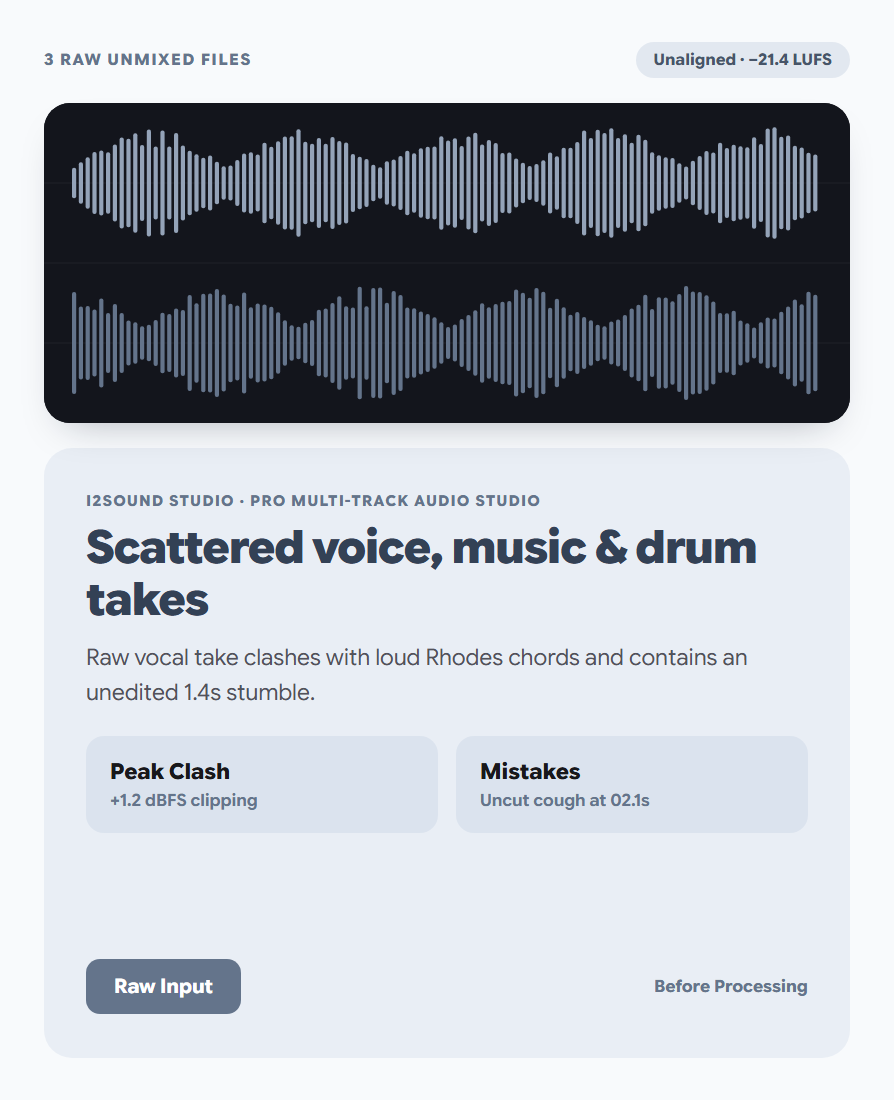
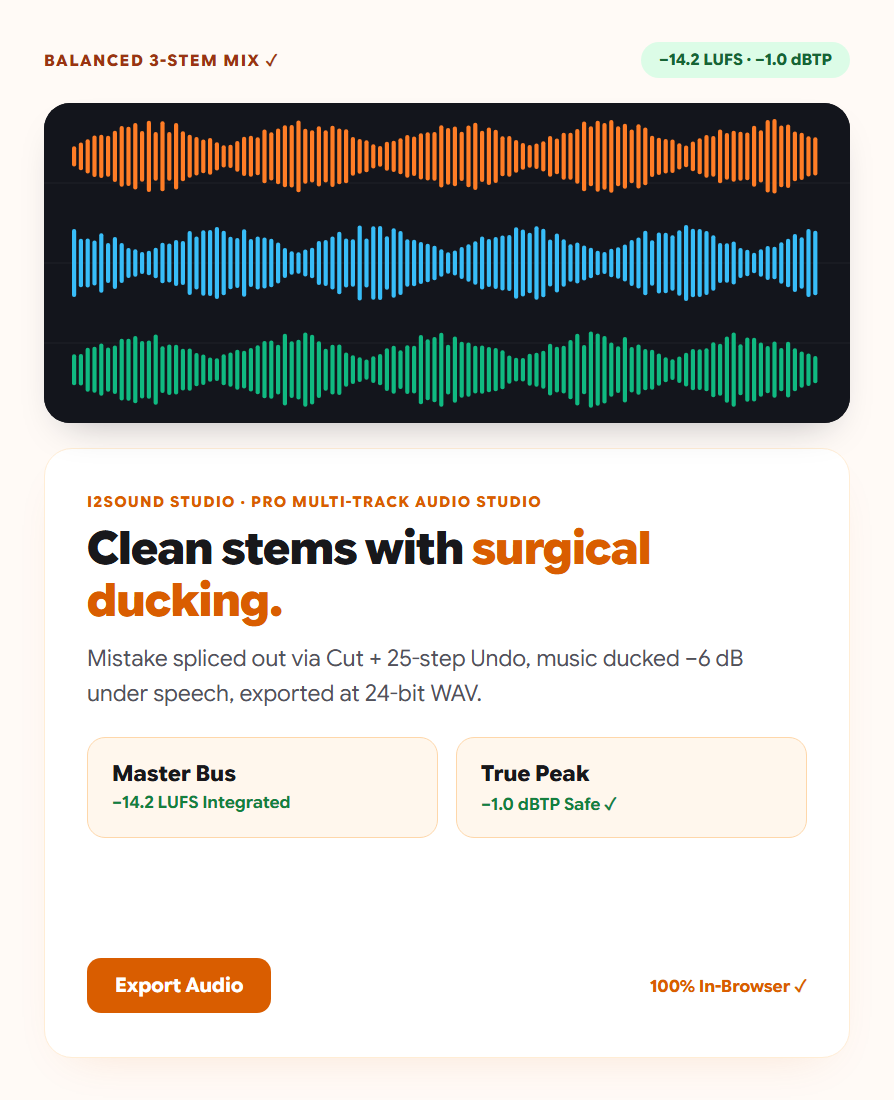

Open Pro Multi-Track Audio Studio whenever you need fast, studio-accurate results directly in your browser without uploading private files. When a project outgrows a single-purpose tool, Pro Studio opens an edge-to-edge multi-track timeline where you can layer voiceovers over music beds, highlight exact millisecond regions to Cut, Copy, Paste, Duck, Bleep, or Denoise with Ctrl+Z Undo, split stereo songs into Vocal + Instrumental lanes, and monitor BS.1770-4 LUFS live.
Import stems or record overdubs
Click + Add Track in the top ribbon (or drop multiple MP3, WAV, FLAC, M4A, or MP4 files onto the dark stage) to create independent stereo lanes. Use Record Track to capture live microphone voiceovers while existing backing tracks play.
Each lane provides dedicated M (Mute), S (Solo), @ s start-offset timing, Vol, and Pan faders.
Studio tip: Keyboard power shortcuts: Space (Play/Pause), Ctrl+Z / Ctrl+Y (Undo/Redo), Ctrl+X / C / V (Cut/Copy/Paste), Delete (Splice Out Selection), Ctrl+K (Crop to Selection), and Ctrl+A (Select Entire Track).
Edit regions & apply any of the 48 tools
Drag across any dark waveform lane to highlight a millisecond region. Use Cut (Ctrl+X), Delete, or Crop in the top ribbon—or open any category on the Left Rail (Edit, Effects, Voice, Analyze, Synth, Convert) to apply processors strictly to that selection with 25-step Ctrl+Z Undo.
Need acapella and backing stems from one song, or timed captions for a voice track? Open Voice → AI Vocal Remover & Stem Split to click Separate Vocals & Music onto two mixer lanes, or open AI Audio to Text & Captions to export Standard Subtitles or 3-word TikTok captions.
Layer voiceover + ducked music bed
Import voice on Track 1 and music on Track 2, highlight speech sections on the music track, and click Duck −6 dB.
AI 2-Track Vocal + Instrumental Split
Select any song lane and click Separate Vocals & Music to split Instrumental and Vocals onto independent Mute/Solo lanes.
Region-targeted FX + 25-step Undo
Apply Fade, Reverse, 1 kHz Bleep, Spectral Denoise, or Hall Reverb strictly to your highlighted selection.
Verify LUFS loudness and export mixdown
Watch the live Master FFT and BS.1770-4 LUFS / dBTP readout in the bottom-right output cluster as your arrangement plays. Select WAV · 24-bit Studio, FLAC · 16-bit Lossless, or MP3 · 320 kbps and click Export Mixdown.
Every muted or soloed lane state, pan position, and start offset is rendered accurately into your final master file.
Session Summary (Pro Studio Mixdown)
Track 1: Lead Vocal        Vol: +1.5 dB   Pan: Center   [Voice Polish + Cut]
Track 2: Stereo Rhodes     Vol: -5.5 dB   Pan: Wide     [Ducked under speech]
Track 3: 808 Sub & Drums   Vol: -1.0 dB   Pan: Center   [30 Hz Rumble Cut]
Master : -14.2 LUFS Integrated | -1.0 dBTP True Peak | 48 kHz 24-bit WAVCommon questions
Can I start editing in a quick tool like Audio Cutter and jump into Pro Studio later?
Yes! Click Pro Studio at the left of the module bar (or under Continue in) on any of the 48 tools—your active audio loads automatically onto Track 1.
Does Mute or Solo affect the exported Mixdown file?
Yes. Export Mixdown renders the exact audible arrangement—respecting every track's Mute, Solo, Volume dB, Stereo Pan, and Start Offset.
How do I apply one of the 48 effects to just a single word or phrase?
Click and drag across that word on its dark waveform lane to highlight a selection, pick any processor from the Left Rail (such as 1 kHz Bleep, Duck −6 dB, or Hall Reverb), and click Apply to Selection / Track—only that highlighted slice is modified, with 8 ms anti-click crossfades and instant Ctrl+Z Undo.
Try Pro Multi-Track Audio Studio in your browser
Layer stems, cut mistakes surgically, and export a 24-bit mixdown.