
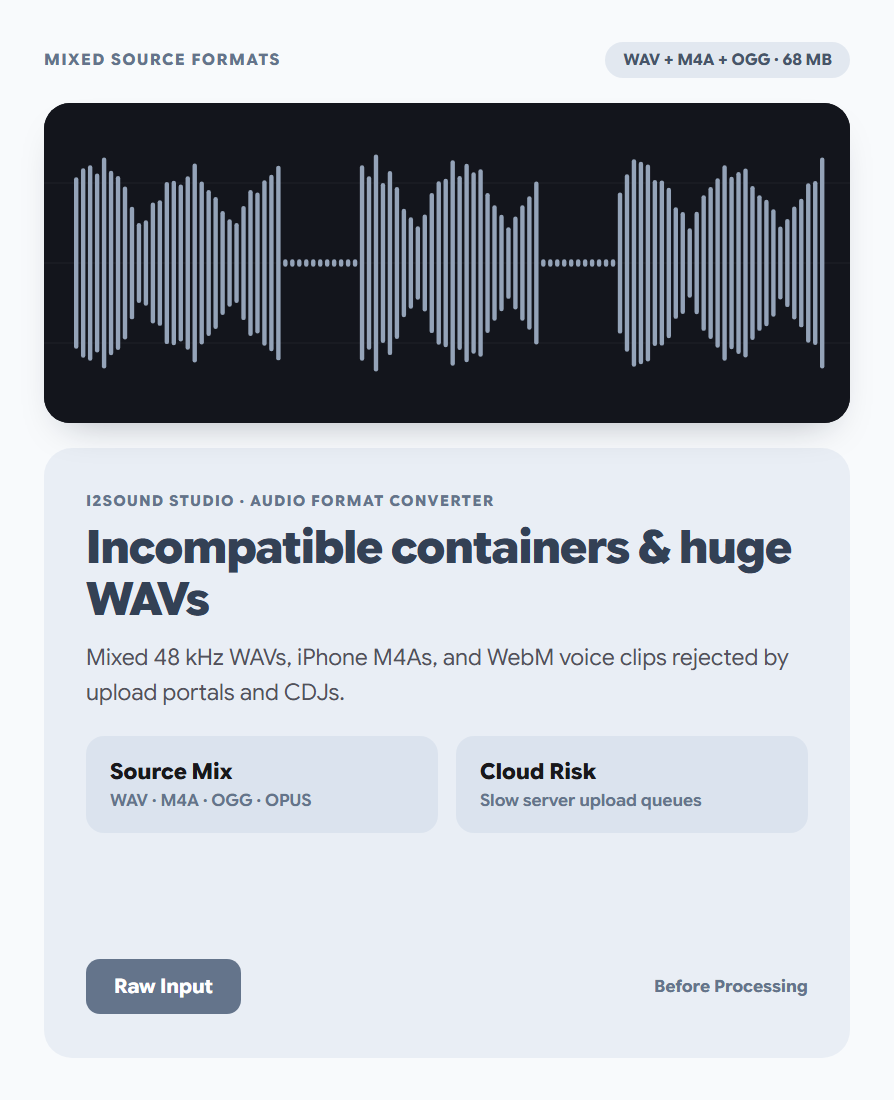
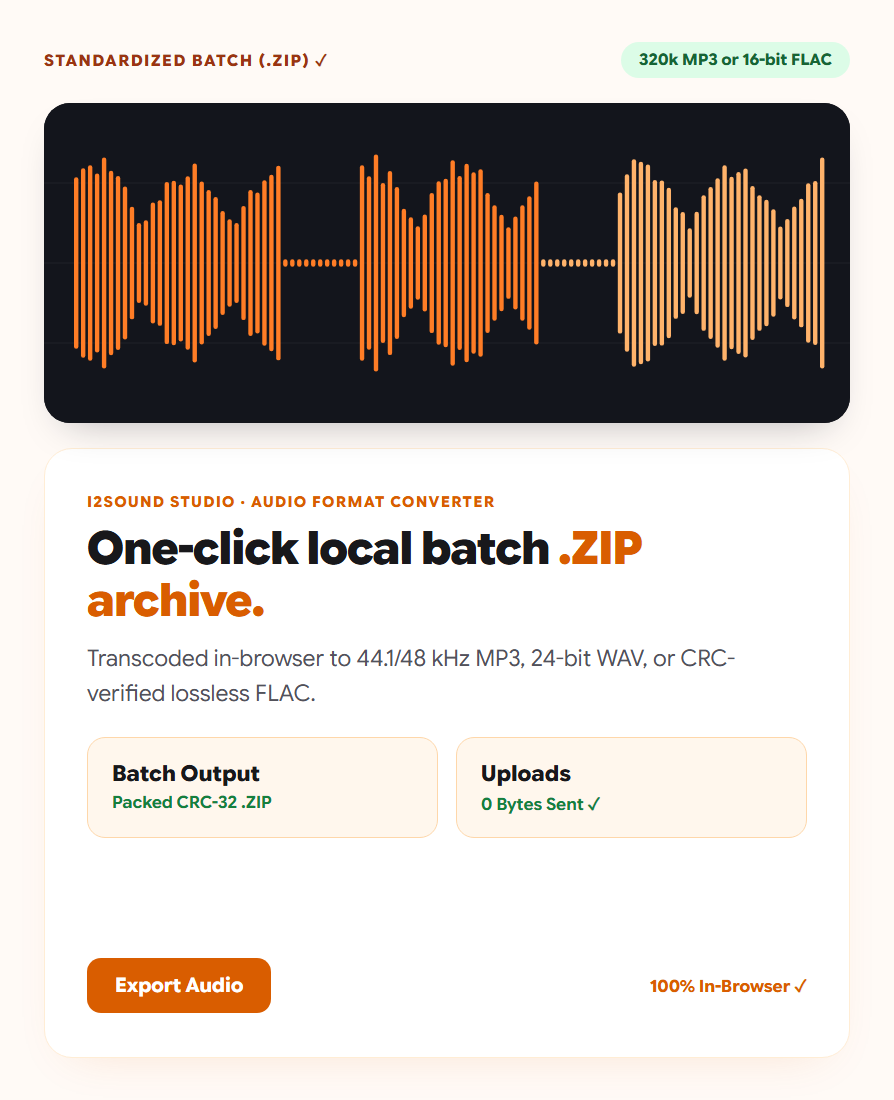

Open Audio Format Converter whenever you need fast, studio-accurate results directly in your browser without uploading private files. Drop one track or an entire folder of MP3, WAV, FLAC, M4A, AAC, OGG, OPUS, WMA, AC3, AMR, AIFF, ALAC, MKV, AVI, MOV, and MP4 files—choose your output format, sample rate, stereo/mono layout, and loudness normalization, and export individually or as a .ZIP.
Open your audio or video locally
Click Choose Audio or Video in Audio Format Converter (or drag and drop standard or exotic files including WMA, AC3, AMR, AIFF, ALAC, MKV, AVI, MP3, WAV, FLAC, M4A, and OGG) to queue them directly in local browser memory.
Press Spacebar to start playback and use the Waveform / Spectrogram / Live FFT view tabs or mouse-wheel zoom (up to 40×) to inspect exact transients and noise floors.
Studio tip: Archiving studio masters? Select FLAC · 16-bit Lossless or WAV · 24-bit Studio in the Format menu for bit-transparent audio preservation.
Dial Preset & audition live
Adjust Preset in the studio control dock. Hold Shift while dragging any rotary dial for fine precision, or double-click any control to snap back to its calibrated default.
Press B on your keyboard (or click the FX Active (A/B) switch) while audio plays to crossfade click-free in 15 ms between your dry original and processed signal.
CDJ & DAW format prep
Convert OGG, OPUS, or WebM downloads into standard 44.1/48 kHz 16-bit or 24-bit WAV and 320 kbps MP3.
Batch normalize & mono downmix
Standardize a folder of mixed voice recordings to 44.1 kHz Mono −0.3 dBFS MP3s in one batch pass.
Offline lossless FLAC encoding
Encode lossless FLAC files with CRC-8/CRC-16 frame verification directly inside your browser.
Verify levels and export cleanly
Confirm headroom on the stereo output meter so peaks remain safely below 0.0 dBFS. Select your target format—such as MP3 · 320 kbps, WAV · 24-bit Studio, or FLAC · 16-bit Lossless—and click Export Audio.
Need multi-step mastering or multi-track stem layering afterward? Click Continue in (or Pro Studio in the upper module bar) to pass your processed audio straight to the next studio tool without re-uploading.
Verified Studio Recipe — Audio Format Converter
Input Support : MP3, WAV, FLAC, M4A, OGG, OPUS, WMA, AC3, AMR, AIFF, ALAC, MKV, AVI, MP4
Key Controls  : Target Format  |  Sample Rate  |  Stereo / Mono  |  Peak Normalization
Before -> Now : Mixed WMA + AC3 + WAV + MKV Batch  -->  320k MP3 or Lossless FLAC (.ZIP)
Output Export : MP3 (320/192/128k), WAV (16/24/32-bit), Lossless FLAC, & Batch .ZIPCommon questions
How many files can I convert at once?
Because conversion runs on your own device CPU with zero server quotas, you can queue dozens of tracks at once and download them in a single .ZIP archive.
When should I choose FLAC vs. WAV vs. 320 kbps MP3?
Choose 320 kbps MP3 for universal playback at small file sizes, 24-bit WAV for video/DAW timelines, and 16-bit FLAC for lossless archiving at ~45% smaller size than WAV.
Does Auto-Normalize Loudness clip loud drums?
No—normalization targets a safe −0.3 dBFS peak ceiling protected by a 4× oversampled soft clipper.
Try Audio Format Converter in your browser
Transcode single tracks or entire folders to MP3, 24-bit WAV, or FLAC.